
Call Waiter by QR Code: How a Table Request Travels from the Code to the Staff Tablet
The guest scans the code and picks what they need; staff see the table, the type of request and the waiting time on a tablet.
For owners and operations managers who are considering a waiter call system or rolling one out.
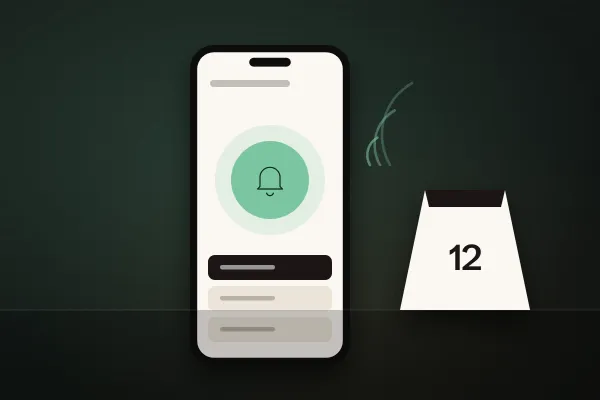
A QR waiter call gives guests a simple way to say ‘we need you’ without waving across the room or getting up. The guest scans the code on the table, chooses what they need in the restaurant's menu, and staff see the table, the type of request and how long the guest has been waiting on a tablet. This guide is for owners and operations managers who are considering the feature or rolling it out. It follows a request from the printed code to the tap that closes it, shows what to prepare and flags the mistakes that turn a useful signal into another screen nobody watches.
What a QR waiter call is and what it isn't
It is an operational request from a specific table. The guest doesn't order, pay or chat with staff through it; they signal that someone should come to the table, and briefly why. In RestoCraft's Waiter Call the guest chooses from four request types: call staff („Přivolat obsluhu“), bring the bill („Přinést účet“), I need help („Potřebuji pomoc“) and clear the table („Uklidit stůl“); the labels in brackets are those of the Czech interface. The restaurant decides in its settings which of them guests see.
Keep three things apart that are easily confused on the floor. A waiter call means ‘please come to the table’. A bill request means ‘we'd like to pay, please bring the bill’. QR payment is a different feature, where guests pay on their own phone. Nothing is paid through a waiter call or a bill request and no receipt is created; payment works as the restaurant already handles it.
Every request has a status and a time. It is created as new; staff complete it, unless the guest cancels it first. At peak times you work with the order of requests and waiting times, not with who catches whose eye. Personal contact stays: staff still come to the table, they just know where to go and why.
How a request travels from the QR code to the tablet
The flow has seven steps. The guest sees four of them; the rest happens in the system and on the shift.
The QR code already knows the table
Every QR code carries a table key that identifies the table, the venue and the restaurant. The guest doesn't pick the restaurant from a list or type ‘we're at table 14’, and staff don't have to work out where the request came from. One physical table has one key; on a long table you can print the same code in several places and it is still one table. If you change a table's key, all its old printouts stop working.
What the guest sees on their phone
The code opens the restaurant's menu in Premium QR. The bottom navigation holds home, menu, call staff, the Club and reviews, with the waiter call in the centre. Tapping it opens a sheet asking how the restaurant can help („Jak vám můžeme pomoci?“) with the request types the restaurant has enabled. The first is preselected, so a couple of taps are enough. With a bill request the guest can add whether they will pay by card or in cash; with a help request, a note of up to 160 characters.
Checks on the system side
Before a request reaches the team, the system checks that the table exists as an active physical table of the venue and that the restaurant's website is published. The server rejects request types the restaurant hasn't enabled, and only a venue whose plan includes the waiter call module accepts requests. Whatever isn't set up in table management and the waiter call settings, the guest can't send.
The queue and closing a request
The request appears on the staff tablet in real time with the table number, the request type and the waiting time; the same calls show in a live queue in the browser-based admin. A member of staff goes to the table and closes the request by tapping its card, and the guest sees that everything is done. How the queue orders requests and where to put the device deserves an article of its own.
What the guest sees and can do
A waiter call is a short interaction, but it has to feel reliable, or guests start waving anyway. What the system shows after sending matters:
- Request status. The guest sees that the request has been sent („Požadavek odeslán“) and, once handled, that everything is done („Vše je vyřízeno“).
- Option to cancel. While the request is new, the guest can cancel it, for example when a server has walked past in the meantime.
- One request per table. A table never has more than one active request. A second guest at the same table sees the existing request, so no duplicate is created.
- Nothing to fill in. No table number, no account, nothing to install.
When two guests at a table of six both tap, the tablet doesn't show two cards and two people don't set off. But a request carries only one reason: if one guest called for staff and another wants to pay, the server finds out at the table, so ask the whole table what else they need.
What changes for staff and managers
For the team on shift, waiter calls become a queue on the tablet, split into need attention, waiting and in progress („Vyžadují pozornost“, „Čekají“ and „Řeší se“ in the Czech app), each with the oldest first. A card shows the waiting time, and a request that waits too long moves up: after five minutes the tablet marks it as waiting long („Čeká dlouho“), and depending on thresholds the restaurant sets (5 and 10 minutes by default) it gets high and then critical priority.
Priority depends only on the waiting time, not on the type of request: a bill request doesn't jump ahead of a help request, and table clearing doesn't automatically wait behind everything else. What comes first is the team's call. The product description also doesn't provide for assigning requests to individual servers, so who goes to which table is a matter for your shift rules.
The whole card works as a button: one tap closes a new request, with no intermediate ‘accepted’ step for staff to confirm, and a double tap doesn't close it twice. Completed and cancelled requests stay in the history on the tablet and in the admin, where a manager who isn't on the floor can also follow the live queue.
How guests get staff attention today
A QR waiter call doesn't compete with good service; it competes with chance. Compare it with how guests get hold of staff today.
Waving, table checks and a QR waiter call
| Criterion | Eye contact and waving | Regular table checks | QR waiter call |
|---|---|---|---|
| Who starts | The guest, if they catch a server's eye | Staff, at their own rhythm | The guest, whenever they need something |
| What staff know in advance | Nothing until they reach the table | Nothing, the visit is preventive | Table, request type and waiting time |
| At peak times | Signals get lost among other guests | Checks are delayed or skipped | Requests are ordered oldest first |
| Far tables and terraces | The guest often can't see any staff | Long walks just in case | Doesn't depend on who is where |
| What the restaurant needs | Nothing extra | Discipline and enough people on the floor | Tables in the system, QR codes, a tablet and shift rules |
| Main risk | The guest leaves unhappy and nobody knows why | Interrupting guests who need nothing | Nobody watches the tablet, or someone taps too early |
Most restaurants don't have to choose: table checks and eye contact stay, and the QR call catches the moments when staff are looking the other way. It typically pays off in table-service restaurants, on terraces, in large venues with several people on shift and in louder bars, lounges or event spaces. It makes less sense where guests order and pay at the counter, or where staff can see every table without turning round.
Preparing for launch
A waiter call relies on the restaurant's real structure: the venue, its tables and the team's devices. Before you print the first table stand, go through this checklist:
- Tables match reality. Every active table in table management gets its own QR code, and table numbers in the system match the ones staff use.
- The restaurant's website is published. The code leads to the published website with the menu in Premium QR; without it you can't generate table codes.
- Your plan includes the waiter call module. Check what your plan covers before scheduling the launch.
- Guest requests are switched on. In the venue settings, turn them on and choose what guests can ask for.
- Codes are generated. Create them in the admin from active tables, optionally with your logo, and export them as PNG, SVG or for print.
- Codes are visible. On a table stand, a placemat or a sticker; on a long table, in several places.
- The team's device is ready. A tablet with the RestoCraft app signed in to the venue, or the live queue in the admin.
- Everything is tested. Before the first service, send every enabled request type from a few tables and check the table numbers that arrive.
Where free online generators fall short for restaurant codes is covered in our guide to creating a QR code for your restaurant. Check printed codes now and then for damage or anything stuck over them. When you print new stands after renumbering tables, or suspect a code is circulating outside the restaurant, change the table key; all old printouts for that table stop working, so replace them at once.
Shift rules: who watches the queue and when to tap
Software alone won't speed up service; how the team works with the queue will. Agree a few rules before launch and post them where even a new starter sees them.
- Who watches the queue. One named person per shift or section, not ‘everyone’, who hands over when leaving the floor.
- When to tap. Only when you are actually heading to the table or standing at it. After the tap the guest sees that everything is done; if nobody comes, that's worse than no response.
- Who handles which type. Who clears tables, who brings the card terminal for the bill and who deals with help requests that come with a note.
- What to do with long waits. A card marked as waiting long takes priority over a task that can wait.
- How to tell guests. A short line next to the code, such as ‘Need us? Scan the code and call staff’, saves explaining at the table.
Common rollout mistakes
- A tablet nobody can see. It lies in the office or face down behind the till, and requests wait as waving did.
- Tapping too early. Staff tap a request away and reach the table much later, while the guest reads that everything is done.
- Enabled types nobody handles. If nobody is responsible for clearing tables, don't offer table clearing.
- Mismatched table numbers. Table 12 in the system is table 21 in the room.
- Notifications on every server's phone. The product description covers a tablet and the admin's live queue, not a staff mobile app. Plan the shift accordingly.
- Calls instead of table checks. The feature catches what would slip through, but doesn't replace attention to guests who ask for nothing.
Frequently asked questions
No. The QR code opens the restaurant's mobile website and the guest sends the request from the browser, with no installation and no registration.
Neither a waiter call nor a bill request processes a payment. They tell staff that the guest needs them or wants to pay, and how. The payment itself happens at the table or at the bar, as usual in the restaurant.
No. Priority in the queue depends only on the waiting time. If you want bills handled first, agree it as a shift rule.
No. The waiter call is part of the Premium QR menu: it sits in the centre of the bottom navigation, next to the menu, the loyalty programme and reviews, and the table code leads to the restaurant's published website with the menu.
While a request is new, the guest can cancel it and nobody needs to go to the table. Cancelled requests appear alongside completed ones in the history on the tablet and in the admin.
Key takeaways
The QR code carries the table, so the guest fills in nothing and staff don't guess where a request came from.
Guests call staff or ask for the bill, help or table clearing, depending on what the restaurant enables.
Neither a waiter call nor a bill request is a QR payment.
The tablet queue orders requests oldest first and moves long waits up.
One tap closes a request, so tap only when you are actually heading to the table.
Shift rules decide the outcome: who watches the queue and who handles which type.
Conclusion
A QR waiter call solves a small but noticeable problem: the moment when a guest needs something and staff don't know yet. Technically it takes tables in the system, printed codes, the right settings and a tablet. The real difference comes from the rules the team agrees on: who watches the queue, when to tap and what to do with a request that has waited too long.
The Waiter Call product page shows the whole flow in RestoCraft. As a next step, look closely at how the team works with the queue on the tablet: that is where it is decided how quickly the guest sees a member of staff.